
The free way: Speak Screen
Every iPhone can read the screen out loud. It’s off by default.
- Open Settings › Accessibility › Spoken Content and turn on Speak Screen.
- Open the PDF in Files, Books or Mail.
- Swipe down from the top of the screen with two fingers. Your iPhone starts reading, and a small controller lets you pause or change the speed.
The menu names move between iOS versions. If you can’t find it, search Settings for “Speak Screen”.
Where Speak Screen falls short
- It reads what’s on the screen, so page numbers, running headers and footnotes get read too.
- It doesn’t remember your place. Stop halfway and you scroll back to find it.
- It reads one thing. There’s no queue, so it stops at the end of the PDF.
- The voices are the system ones, and you choose them in Settings.
For a two-page letter, that’s fine. For a 40-page report you want to finish on your commute, it gets in the way.
With Luni: a PDF you listen to like an audiobook
- Open the PDF in Files or Mail, tap Share and pick Luni.
- Press play. Luni reads it with the voice you picked.
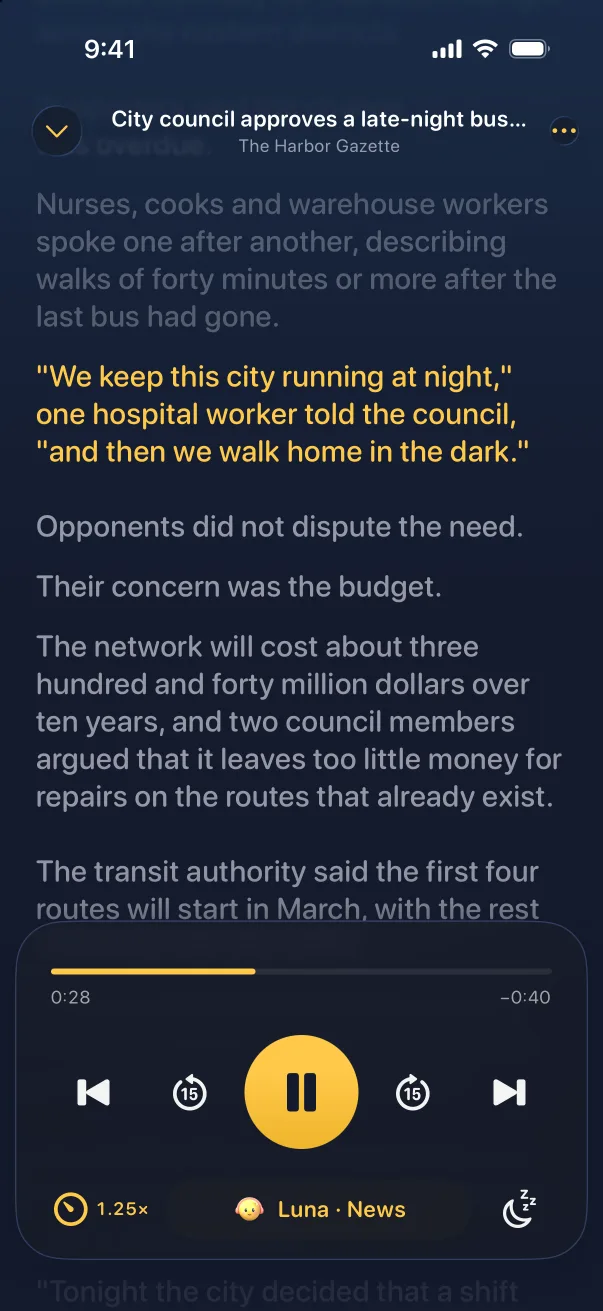
What changes:
- Only the text you want. Luni skips page numbers, running headers, footnotes, captions and tables, and doesn’t cut a paragraph that runs on to the next page.
- Your place, saved. Ten minutes on the bus and ten more at lunch add up to a finished report.
- Lock the phone. It keeps reading in the background and on the lock screen, then moves on to the next thing in Up Next.
- Your pace. From 0.75× to 2×, with a sleep timer.
- Works with no signal. The voices run on the iPhone, so a PDF plays on a plane and your file never leaves the phone.
- No limit. Luni Pro doesn’t count hours or pages.
Side by side
| Speak Screen | Luni | |
|---|---|---|
| Price | Free, built into iOS | Luni Pro subscription, 7-day free trial |
| Page numbers and footnotes | Read aloud | Skipped |
| Remembers your place | No | Yes, in every PDF |
| Queue of documents | No | Up Next plays them in order |
| Follow along | Optional word highlight | Sentence highlight, tap to jump |
| Offline | Yes | Yes |
| Scanned PDFs | Only if the text can be selected | Only if the text can be selected |
Use Speak Screen for something short. Use Luni for the PDFs you’d otherwise never get through.